To verify a UK business phone number on WhatsApp Business, you must own the number, present it in E.164 format and complete a verification code step by SMS or automated voice call. Use the Business app for a straightforward mobile or landline number, or WhatsApp Manager, the Cloud API, or a solution partner for anything more complex. Two-step verification and an approved display name come next, especially if you want Official Business Account status.
TL;DR:
- Mobile numbers can receive SMS or voice codes, while standard landlines require automated calls; IVR menus and some hosted lines may block registration.
- Toll free, premium rate, and universal access numbers often need the Business API or a solution partner; unusual VoIP numbers may require preverification.
- Registration must generally finish within 14 days; missed deadlines require restarting the flow, while porting delays make it wise to test routing beforehand.
- The Business app suits straightforward mobile or landline registrations; use WhatsApp Manager, the Cloud API, or a solution partner for complex numbers.
Table of Contents
- Quick checklist: what to prepare before you start verification
- Which UK numbers work with WhatsApp Business
- Step-by-step: registering and verifying your number
- Two-step verification, display name and Official Business Account basics
- Common verification problems and how to fix them
- Author perspective: practical notes for UK sole traders and SMEs
- How Phonenumbers.store helps you get verification-ready
- FAQ
- Sources
Quick checklist: what to prepare before you start verification
Most verification failures trace back to skipped preparation rather than anything technical. Working through this list first saves you from restarting the process halfway through.
- Confirm you own the number and write it in E.164 format (+44 for the UK, dropping the leading zero).
- Check whether the number can receive SMS or voice calls; landlines need the “call me” option.
- Make sure the number is not already registered to another WhatsApp account; delete or migrate it first if it is.
- Decide your route: the WhatsApp Business app, WhatsApp Manager or the Cloud API, or a solution partner.
- Prepare your display name and any business documents you might need for approval.
- Set a two-step verification PIN and store it somewhere safe.
- Reserve or secure the number if you have only just purchased it. Phonenumbers.store offers a 30 day reservation if you need breathing room before the checkout completes.
Pro Tip: Test that your chosen number can actually take an inbound call or SMS before you start the WhatsApp flow, not after a failed attempt.
Which UK numbers work with WhatsApp Business
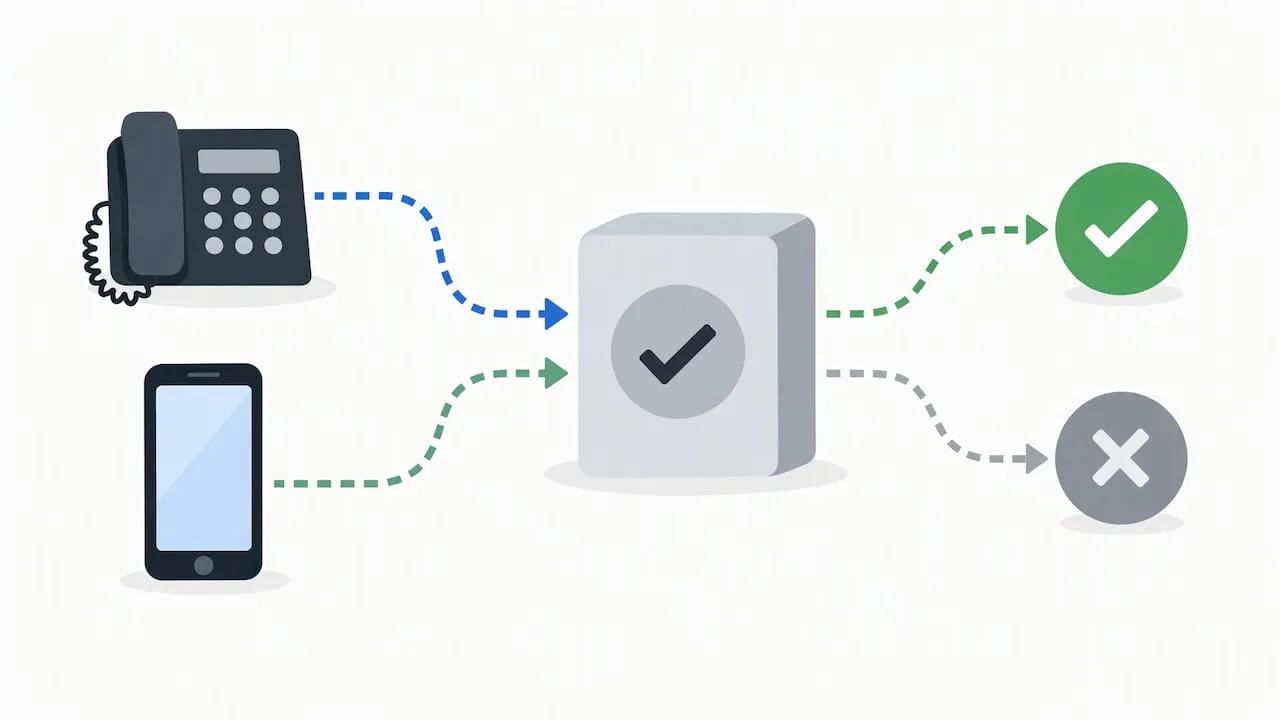
Not every UK number behaves the same way once you try to register it. Mobile numbers are the simplest case: they take SMS or voice verification without extra steps, which makes a memorable 07 number a safe default for sole traders who want speed.
Landlines are a different story. They generally cannot receive SMS, so verification has to go through an automated voice call, and some VoIP-hosted or extension-routed lines may not even pick that call up correctly, according to Sinch’s guidance on landline compatibility.
- Mobile (07) numbers: verify by SMS or voice with no special handling.
- Standard landlines (01/02): verify by automated voice call only.
- Toll-free, premium-rate and UAN numbers: often need the Business API and additional setup rather than the consumer app.
- VoIP and hosted lines: can work, but some configurations need a solution partner to pre-verify them.
- Numbers sitting behind an IVR menu: the automated registration call can be blocked unless you route WhatsApp’s calling numbers through to a person or voicemail.
A well-known 01/02 landline suits a business that wants a recognisable local presence, while an 07 mobile number is the quicker route to verification when you need WhatsApp running the same day. Non-geo 03/08 numbers sit in between. They read as professional and national, but check their voice-call handling before committing them to WhatsApp, since IVR routing and automated verification calls do not always mix well, per the same Sinch overview.
Step-by-step: registering and verifying your number
The exact steps differ slightly depending on whether you use the app, WhatsApp Manager, or a solution partner, but the underlying flow is the same one Meta documents for registering phone numbers through the Cloud API: add the number, request a code, verify the code, then register it.
- App route: select your country, enter the number in E.164 format, request SMS or tap “Call Me,” then enter the six-digit code when it arrives.
- WhatsApp Manager or Cloud API route: add the phone number record to your WhatsApp Business Account (WABA), call the request_code endpoint with code_method set to SMS or VOICE, confirm it with verify_code, then register the number for the Cloud API with a two-step verification PIN.
- Embedded Signup or solution partner route: the partner’s signup flow automates the add, request and verify steps for you, but you still need to set the PIN and complete any final checks yourself.
Working through the API route requires the whatsapp_business_management permission and the phone number ID returned once the number is added to your WABA; these are conceptual requirements rather than something you need to code yourself if you are using a solution partner.
| Route | Who it suits | Main steps you handle |
|---|---|---|
| Business app | Sole traders, simple mobile or landline numbers | Enter number, request code, verify |
| WhatsApp Manager / Cloud API | SMEs with developer support | Add number, request_code, verify_code, register with PIN |
| Solution partner (Embedded Signup) | Businesses wanting a managed setup | PIN and final checks only |
One detail worth noting at every stage: you generally have a 14-day window to complete registration once you start the add-number flow, so it pays to finish the process in one sitting rather than leaving it half done.
Two-step verification, display name and Official Business Account basics
Once your number is verified, two further steps shape how trustworthy your account looks to customers. A two-step verification PIN is required when you register a number for the Cloud API, and losing it can lock you out of re-registration, so store it with your other business credentials rather than on a sticky note by the till.
- Set a PIN you can recover: store it alongside other business admin logins, not just in someone’s head.
- Match your display name to your official business documents; generic or unrelated names are a common rejection reason.
- Official Business Account status, the blue tick, requires business verification, an approved display name, two-step verification switched on and an established presence, as outlined in guidance on Official Business Accounts.
- Keep Companies House details, a VAT certificate, or other official paperwork ready in case your display name needs manual review.
Pro Tip: Name your WhatsApp Business profile exactly as it appears on your official business registration; an exact match speeds up display name approval noticeably.
Common verification problems and how to fix them
Most verification failures fall into a handful of predictable categories, and each has a known fix rather than requiring a full restart.
- Number already in use: delete the number from its existing WhatsApp account, or follow the documented migration steps before trying again.
- IVR or call-blocking issues: ask your provider to allow WhatsApp’s registration caller ID through your menu system, or route the call to a person or voicemail so it can connect.
- VoIP or virtual number rejected: try a different number, or register through the Cloud API with a solution partner that can pre-verify unusual number types.
- Missed the 14 day window: restart the add-number flow from scratch and aim to complete every step in a single session this time.
- Banned or flagged numbers: submit an appeal through the proper channel before attempting to register the number again, since repeated attempts without appealing rarely succeed.
Author perspective: practical notes for UK sole traders and SMEs
In my experience helping businesses pick numbers, the bottleneck is rarely WhatsApp itself. It is the gap between buying a number, porting it, and actually testing whether it can take a call. Build in a few days for porting before you touch the verification flow.
Forward calls to a mobile during setup so you catch the verification call even if your main line is not yet configured properly. If your provider runs an IVR, ask them in advance to whitelist WhatsApp’s registration numbers rather than discovering the block mid-process.
— Rob
How Phonenumbers.store helps you get verification-ready
Choosing a number that is already set up to receive calls and SMS cleanly saves you the troubleshooting described above. We provide memorable UK landline and mobile numbers, sourced from multiple operators, with full portability so a number works wherever your business goes.
- Reserve a number for 30 days while you organise your WhatsApp setup, rather than losing it to another buyer mid-process.
- Pair a landline with our XL Hosted Voice Service with a VoIP phone to keep voice routing reliable for verification calls.
- Use our XL-IP service to keep an existing number working through your broadband router if you are not ready to switch providers.
- Pick up an XL Mobile SIM when a straightforward mobile number is the fastest path to verification.
If your business also needs its online presence sorted alongside your phone number, partner guidance on Google Business Profile verification covers that separate process well.
Search available UK numbers and reserve one today, or head to our main store to see the full range of landline, mobile and non-geo options.
FAQ
How do I verify my number on WhatsApp Business?
Enter your number in the international format inside the Business app, then request a code by SMS or an automated voice call and type the six-digit code when it arrives. For landlines or unusual number types, WhatsApp Manager, the Cloud API, or a solution partner may be needed instead, as set out in Meta’s registration flow.
Why can’t I verify my WhatsApp number?
The most common causes are a number already registered to another WhatsApp account, an IVR system blocking the automated registration call, or a VoIP line that cannot complete voice verification properly, per Sinch’s landline guidance. Deleting the old registration, adjusting IVR settings, or switching to a different number usually resolves it.
Can I use a landline number for WhatsApp Business?
Yes, but landlines verify by automated voice call rather than SMS, since most cannot receive text messages. Some VoIP-hosted or IVR-protected landlines need extra handling through the Business API, as described in Sinch’s overview.
How do I change my phone number on WhatsApp?
You update your number from within the account settings, where WhatsApp guides you through confirming the new number before the switch takes effect; the WhatsApp Help Centre covers the in-app steps for registration and number entry. Keep your existing number active until the new one is fully verified to avoid a gap in service.
What is an Official Business Account on WhatsApp?
An Official Business Account, shown with a blue tick, requires business verification, an approved display name, two-step verification enabled and an established presence, according to documentation on Official Business Accounts. It is a separate step from basic phone verification and is not guaranteed just because your number is verified.
Sources
For UK-specific formatting and porting steps, see our guides on verifying a UK phone number, setting up a business number on mobile, and porting a number with Ofcom rules.
- Registering phone numbers - Meta WhatsApp Cloud API (solution providers)
- Can I use a landline for WhatsApp Business? - Sinch
- Official Business Accounts - Quickreply docs